 Mattevia
Skip the repetitive steps
Choose your images once. Backgrounds are removed one at a time, without uploading each image yourself.
Choose your images, set a consistent background and size, then check the results and download them together.
Up to 20 images · 50 MB total
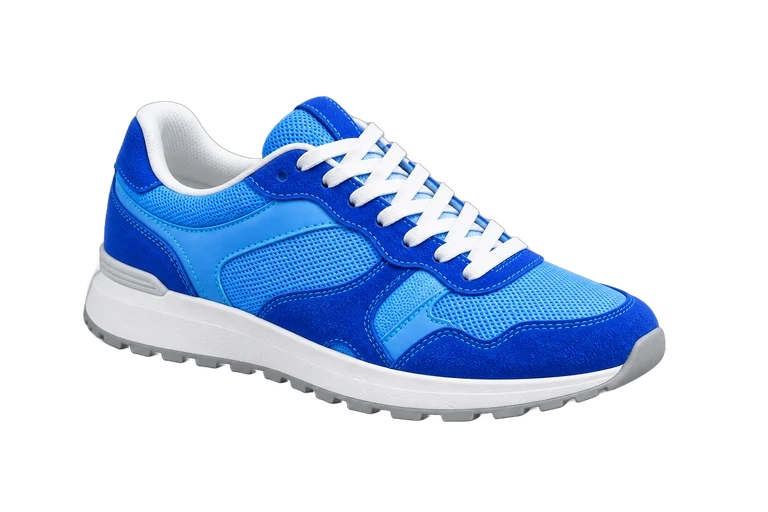


Real sample comparisons · Viewing examples uses no credits
Loading…
Choose your images once. Backgrounds are removed one at a time, without uploading each image yourself.
Apply a shared background, canvas size and export format so your images work together.
Check and download individual images, or get successful results in a ZIP. Repeat exports use no extra credits.
Add multiple images and use the grid to select the ones you want to process.
Choose a background, size and format. Check the credit estimate before processing begins, one image at a time.
Compare before and after, download individual results, or save your selected successful images together.
Yes. Available gifted and purchased credits both work for processing multiple images. No separate upgrade is needed.
Each successfully processed image costs 1 credit, reserved when processing starts and returned if processing fails. Repeat downloads and export changes use no extra credits.
Add credits or select fewer images before starting. If your balance changes or your account becomes restricted during processing, later images stop being submitted. Successful results remain downloadable.
Yes. PNG and WebP support transparency. A transparent background becomes white when exported as JPG. Changing these export settings does not require another background-removal task.
Yes, once the original images have finished uploading and the tasks have been submitted. Submitted tasks continue processing, and you can return to your account’s processing history to check progress and download results for 24 hours. Images that have not finished uploading do not continue automatically. Keep the page open while your browser prepares a ZIP download.