 Mattevia

Choose a single HEIC photo
Upload one static image up to 10 MiB and 60 MP. Live Photo video, RAW/DNG and multi-image bursts are not supported.
Use the HEIC background remover with a single HEIC or HEIF photo. We decode and orient it, remove the background, and return a browser-friendly preview and PNG, JPG or WebP export.
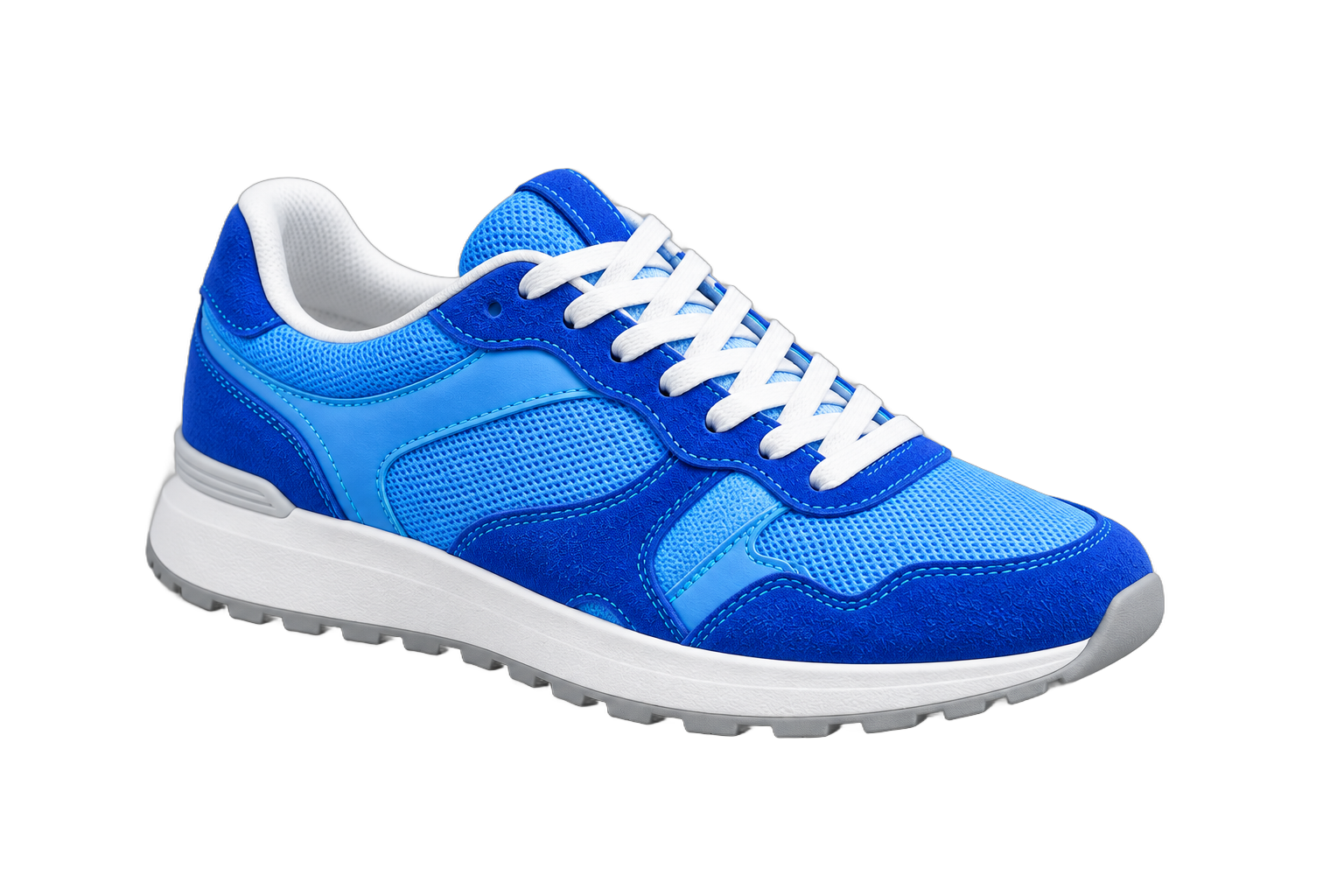
Gray space outside the image is not included in the download.
Upload a static HEIC or HEIF image directly; you do not need to convert it to JPG before using the tool.
Upload one static image up to 10 MiB and 60 MP. Live Photo video, RAW/DNG and multi-image bursts are not supported.
The service decodes the image and applies its stored orientation before processing. Use the browser-friendly preview to inspect the subject edges.
Download PNG for transparency, or JPG/WebP for another workflow. Images may be reduced to the 20 MP processing limit or further to meet result-file limits; check the displayed dimensions.
HEIC and HEIF are common ways to store photographs from a phone. This page accepts supported still images in those formats, removes the scene behind the subject, and lets you export the processed result as PNG, JPG or WebP. It is useful when you want an iPhone portrait or product photo as a cutout for another project.
This is a background-removal workflow, not a way to convert a whole photo while keeping its original background. Keep the source file if the scene matters. A different filename extension does not change the encoding, and a Live Photo's motion component is not a supported still image. Export one still photo from your photo app when necessary.
Choose the original still photo rather than a screenshot or a compressed copy from a chat. Check that the subject is sharp, fully in frame and easy to separate from its surroundings. HEIC inputs must fit the same upload limits: up to 10 MiB and 60 megapixels. Very large images can also require substantial memory on a phone during preview and export.
If the file contains multiple images or cannot be decoded, export a fresh standard JPG or PNG from the original photo application and try that copy. Inspect the new file before uploading to confirm its orientation and dimensions. Merely renaming .heic to .jpg does not perform conversion and can cause a format mismatch instead of solving it.
Check the whole composition when the result appears: the person or product should be upright, and important parts should remain inside the frame. Use the comparison to examine hair, clothing edges, fine handles and spaces around the subject. Some HEIC photos use HDR or special encodings, so compare the visible colors as well as the outline before using the export.
Processing does not promise to preserve every capture feature or all original detail. Large images may be reduced, and background removal cannot recreate a cropped hand or blurred label. Look at the displayed output dimensions and review the downloaded file at its intended size. If decoding or appearance is unexpected, try a standard still-image export from the source app.
Choose transparent PNG for a cutout that you want to place in a slide or design editor. WebP also supports transparency where the destination accepts it. Choose a solid background and JPG for a finished photo that does not need transparent pixels. Exporting as PNG changes the output format; it does not restore the original scene after it has been removed.
Confirm whether the original or square canvas fits your design before saving. Keep the original HEIC photo separately so you can return to it later. Download files you want to keep. If your actual goal is simply to make a full HEIC photo compatible with another app, use a background-preserving converter instead.
Yes. This preview lets you process single images without signing in. Requests are rate-limited to keep the service responsive; no payment is collected in this version.
No. A 48 MP image can be accepted if it is within 10 MiB, but processing is limited to 20 MP. Further proportional reduction may be needed for the result-file limit. Original and processed dimensions are shown; output is not HEIC.
Your images are processed to remove their backgrounds and are not used to train AI models. Download and save the results you want to keep.
Single-image HEIC/HEIF up to 10 MiB and 60 MP are accepted, including 24 MP or 48 MP photos within that file limit. Images are resized proportionally as needed to meet processing and result-file limits; both original and output dimensions are shown. Some complex results may still exceed these limits. Live Photo video, RAW/DNG and multi-frame bursts are not supported.
No. Upload a supported single-image HEIC or HEIF file directly. The service decodes it and returns a preview you can view in the browser. Download the finished image as PNG, JPG or WebP; exporting back to HEIC is not available.
The service applies the photo’s orientation metadata before processing, so a rotated image can have its width and height exchanged. Larger images may also be reduced to fit processing limits. The result shows the original and processed dimensions; the export does not copy EXIF or GPS metadata.
Not with this tool. It removes the background before exporting PNG, JPG or WebP. Accepting a HEIC input does not make it a background-preserving file converter. Keep the original photo and use a dedicated converter when you only want to change the format.
HEIC and HEIF uploads must contain a single supported still image. Live Photo video, RAW/DNG and multi-image files are not supported. Export one still JPG or PNG from your photo app if needed, then check its orientation and dimensions before uploading.
Background remover
Use the HEIC background remover with a single HEIC or HEIF photo. We decode and orient it, remove the background, and return a browser-friendly preview and PNG, JPG or WebP export.