 Mattevia

Drop it in.
Upload, drag, or paste a photo. Start with a product, a portrait, or your favorite pet.
Remove background from an image online, inspect the cutout, and download a transparent PNG or WebP. Choose a solid background color for product photos, portraits, or pets.
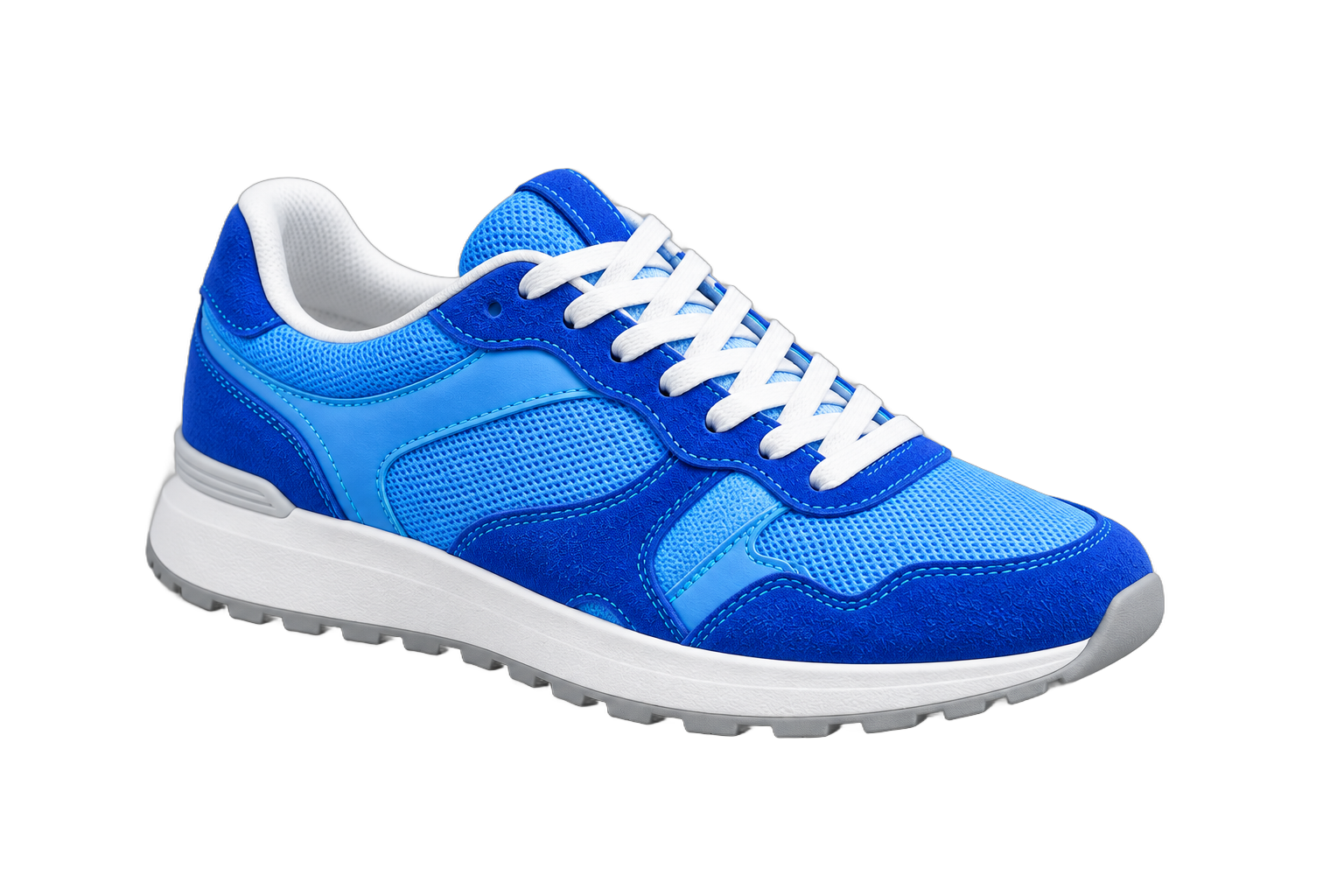
Gray space outside the image is not included in the download.
From your original photo to your next idea, in three simple steps.
Upload, drag, or paste a photo. Start with a product, a portrait, or your favorite pet.
AI separates the subject. Slide across the preview to inspect the edges before you export.
Keep it transparent, choose a color, or make it square. Download your image and keep creating.
Image editing tips, product updates, and practical background-removal guides.
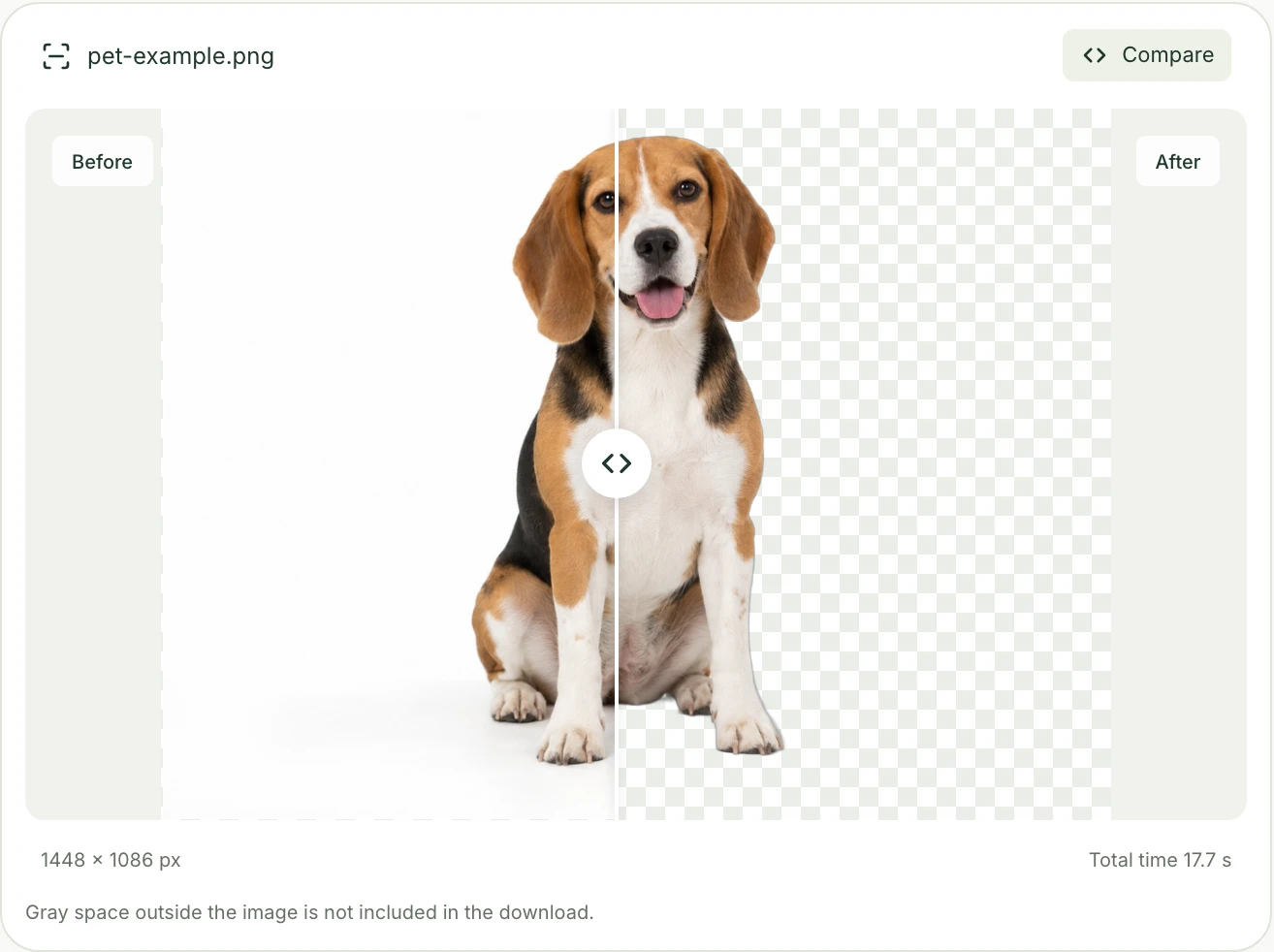
Find out whether your PNG is opaque, displayed on white, or saved with a checkerboard. Test the file, fix the right problem, and export a genuinely transparent image.
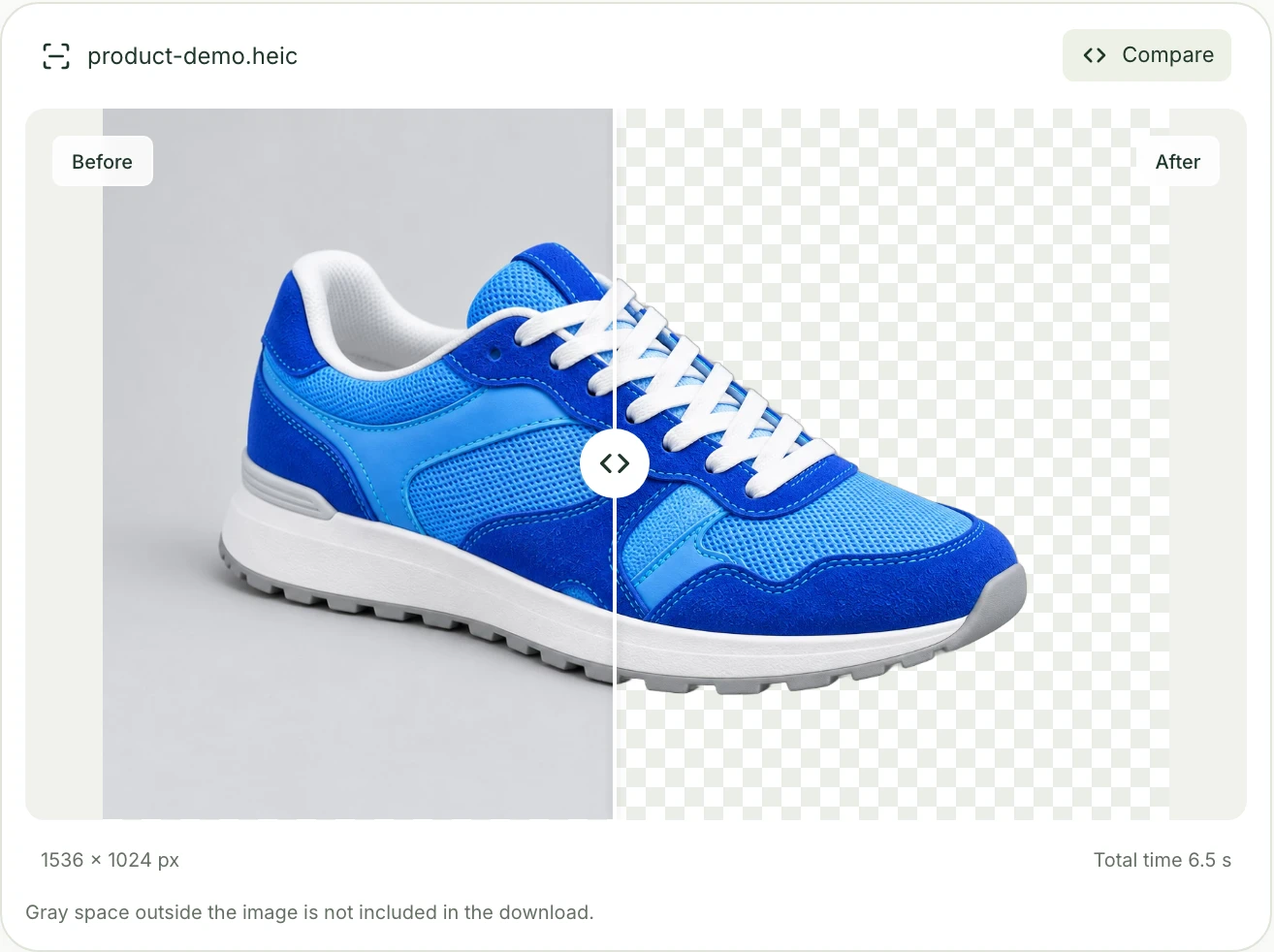
Turn a supported HEIC photo into a transparent PNG. Choose the right original, check the cutout, and understand export size, color, and common upload problems.
Yes. This preview lets you process single images without signing in. Requests are rate-limited to keep the service responsive; no payment is collected in this version.
Choose Transparent and PNG or WebP to keep transparency. JPG fills transparent areas with white. Images may be resized proportionally to meet processing and result-file limits; the result shows both dimensions. Square exports keep proportions and are capped at 4096 pixels.
Your images are processed to remove their backgrounds and are not used to train AI models. Download and save the results you want to keep.
Use a sharp photo with the entire subject in frame. Fine hair, glass, reflections and translucent materials may leave fringes or lose detail. Try light and dark backgrounds to inspect edges and gaps. Changing the background or download format will not repair the cutout or restore missing parts. If needed, try a clearer original with stronger contrast between the subject and background.
Yes. Open the Batch Background Remover to upload up to 20 images, remove their backgrounds and apply shared export settings. Download individual results or let your browser package the selected results into a ZIP.
No. After processing finishes, changing the background color, canvas or export format uses the same cutout in your browser. Compare your options and download them without running background removal again.
Yes. Open the tool in a current mobile browser, choose a supported photo, and wait for the result before downloading. No app installation is needed. Large images can use substantial browser memory, so try a smaller image if preview or export fails.
Check that the photo is a supported still image within 10 MiB and 60 MP. If decoding fails, export a fresh standard JPG or PNG from your photo app; renaming the extension does not convert it. For a busy service, retry shortly. If the result loads but has missing details, try a clearer original with stronger subject contrast. Live Photo video, RAW and multi-image bursts are not supported.
Images may be resized proportionally to fit the 20 MP processing limit or result-file size limit; original and output dimensions are shown. The original canvas keeps the processed aspect ratio. A square canvas adds space around the subject, up to 4096 pixels per side. Gray space outside the preview image is not downloaded, but space inside the selected canvas is included. Check the output dimensions before saving; background removal does not create new detail.
Background remover
Remove background from an image online, inspect the cutout, and download a transparent PNG or WebP. Choose a solid background color for product photos, portraits, or pets.