 Mattevia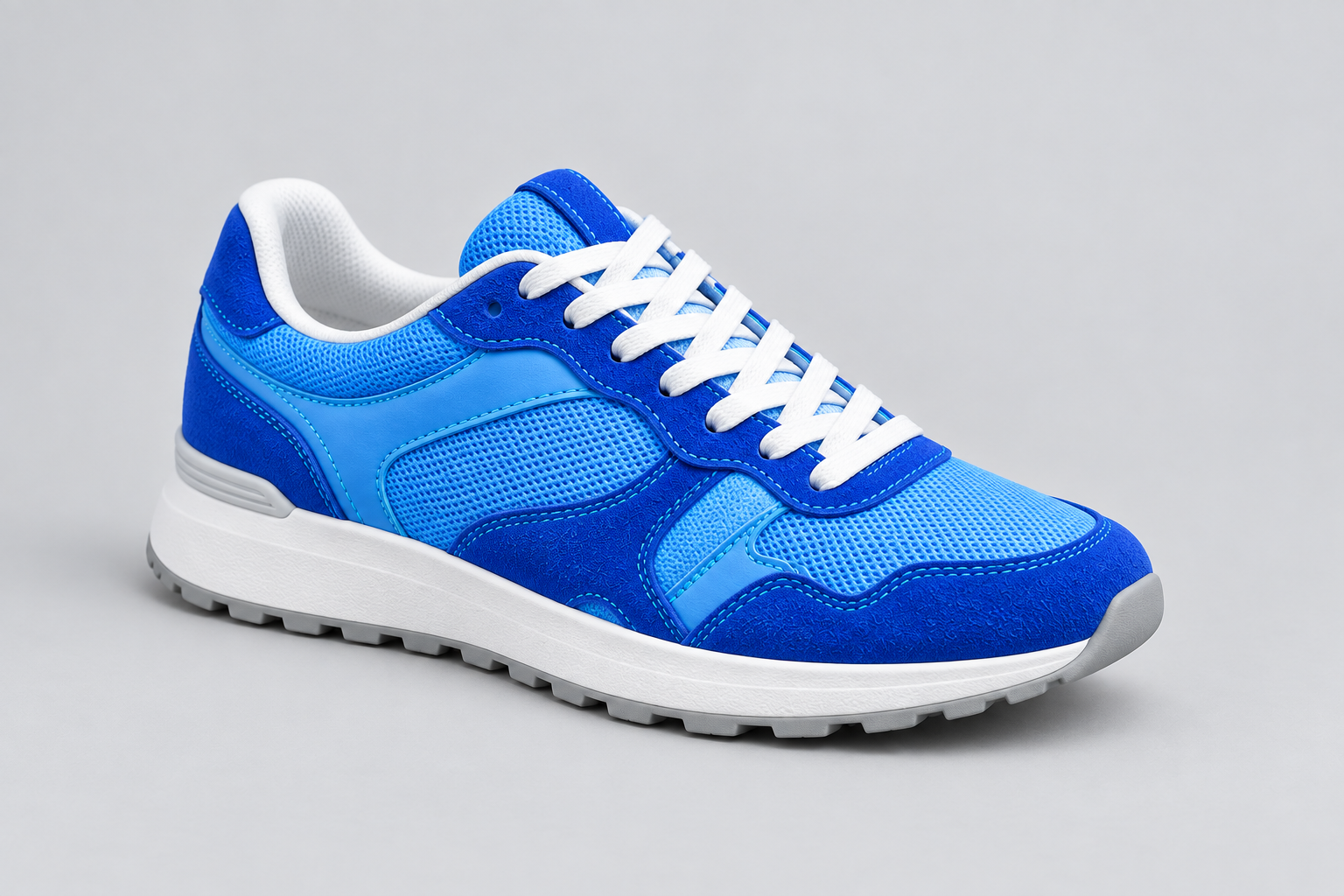

Upload the image to cut out
Start with a product, portrait or other clear subject. Existing transparent areas are preserved during background removal.
Create a transparent background by separating the subject, then download PNG or WebP. The checkerboard is only a preview guide and is not added to your downloaded image.
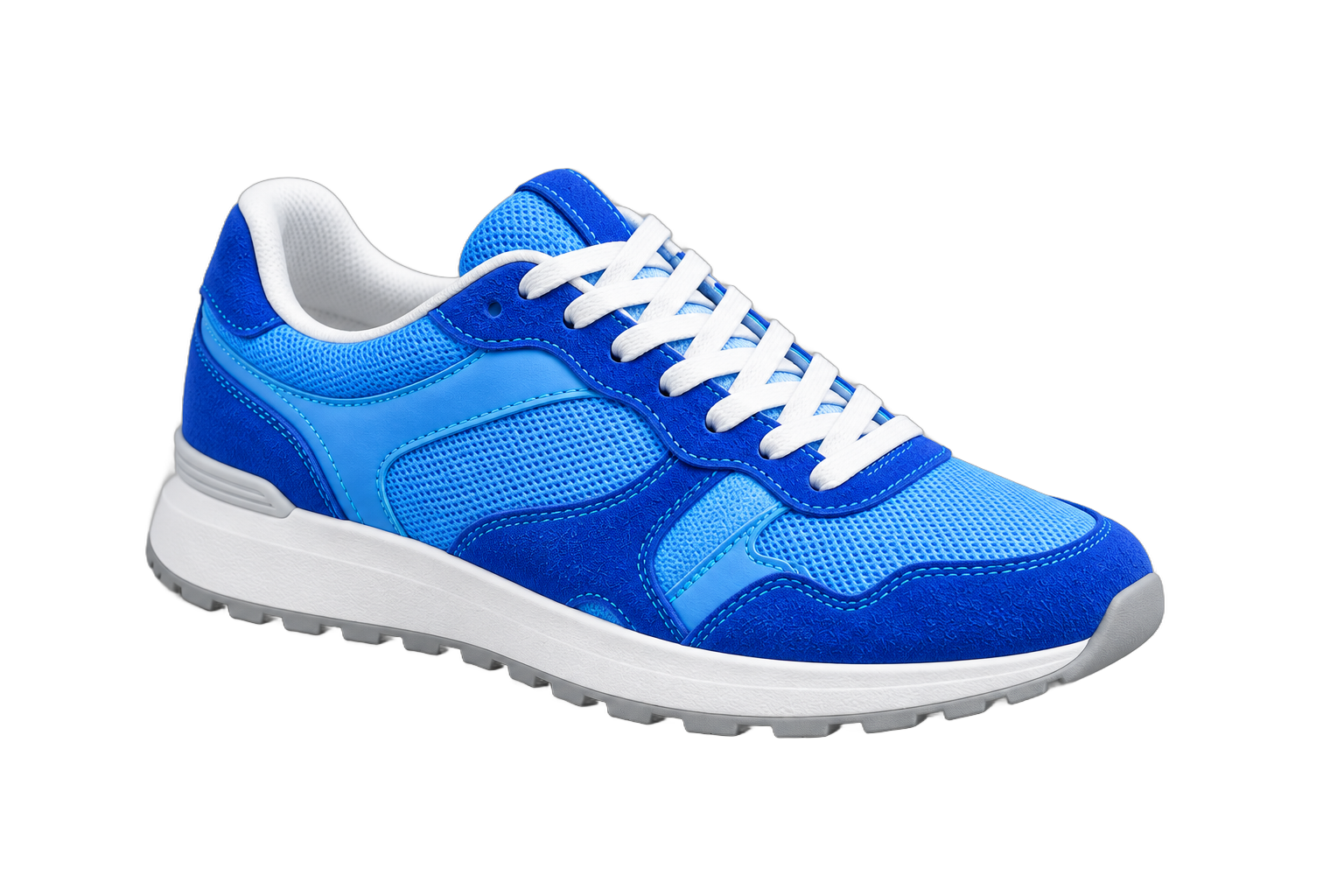
Gray space outside the image is not included in the download.
Create a cutout you can place on another design without carrying a rectangular background with it.
Start with a product, portrait or other clear subject. Existing transparent areas are preserved during background removal.
Keep Transparent selected. The checkerboard helps you see empty areas and is a preview guide, not part of the saved image.
Choose PNG for a transparent cutout or WebP where supported. JPG cannot save transparency and fills those areas with white.
A transparent background lets the visible subject sit on top of another design without a rectangular block of the original scene. Use a cutout in a slide, a product collage, a social graphic or a personal project. The checkerboard in the preview represents empty pixels; it is a viewing aid, not a pattern added to your download.
Start with the original photograph whenever possible. A screenshot of an image on a checkerboard already contains that pattern as real pixels and is not the same as a transparent file. If you already have a clean transparent original, keep it instead of removing the background again. Another pass can change small details that were already correct.
Check the outline on both a light and a dark solid background. A pale fringe may blend into white but stand out in a dark slide. Look closely at hair, fur, glasses, narrow gaps and thin product parts. Translucent objects and strong reflections can be difficult because the original background may be visible through the subject itself.
Compare the processed image with the original to see whether details were lost or background fragments remain. Testing another color reuses the cutout; it does not repair its outline. Return to the transparent option before exporting a transparent result. For logos and illustrations, check small lettering and enclosed shapes especially carefully, and retain the original artwork if scalable vector output is required.
Download PNG for a broadly compatible transparent raster image. WebP is another option when your website or design app supports it. JPG does not support transparency and fills the empty areas with white. A white view in a photo viewer is not enough to tell whether a PNG is transparent: import it over a colored background in your destination app to check.
Choose the canvas for the placement you need. The original canvas retains the processed proportions; the square option adds room around the subject. Empty margins are still part of the exported canvas even when you cannot see them. Check the output dimensions instead of assuming that a subject filling the preview panel will fill every slide or social template.
Keep a copy of the source photograph alongside the transparent result. Background removal and export do not produce an SVG or restore detail by enlarging the picture. When preparing a layout, use the cutout at a size that looks sharp, and inspect it at the final display size rather than relying only on a reduced preview.
Download files you want to keep. If a result is unsuitable, choose a clearer original with stronger separation between subject and background. If the file cannot be processed at all, export a fresh supported still image and check the upload limits before trying again.
Yes. This preview lets you process single images without signing in. Requests are rate-limited to keep the service responsive; no payment is collected in this version.
Some image viewers display a white canvas behind transparent pixels. Check the file on a colored background in your design app. A JPG always has a solid background, even if Transparent was selected before export.
Your images are processed to remove their backgrounds and are not used to train AI models. Download and save the results you want to keep.
JPG has no alpha channel. Choose PNG or WebP to preserve transparency. Images within processing and result-file limits keep the oriented source dimensions. Larger results are reduced proportionally and clearly labelled; the square option changes the canvas separately.
The preview checkerboard is not exported. Choose Transparent and download PNG or WebP to keep empty areas transparent. If a checkerboard was already part of your uploaded image, those squares are image pixels and may remain after processing.
Usually not: you can use the existing transparent image directly in your design. Running background removal again may change its edges or remove fine details. PNG is a file format, so a PNG can also contain a fully opaque background.
You can upload a supported raster image, but results depend on how clearly the graphic stands out. Check small lettering, thin lines and enclosed spaces before using it. If you already have a transparent original, use that version to avoid losing detail through another cutout.
No. PNG and WebP exports remain pixel images with transparency; they are not SVG vectors. Enlarging them does not create new detail. Use the processed image at an appropriate size, or edit the original vector artwork in a vector editor if you need scalable paths.
Background remover
Create a transparent background by separating the subject, then download PNG or WebP. The checkerboard is only a preview guide and is not added to your downloaded image.