 Mattevia

Upload a clear product photo
Use a photo with the whole product in frame. Sharp edges and separation from the original background help the cutout.
Replace the existing backdrop with a white background. Preview the edges, choose the original canvas or a square, and export a JPG, PNG or WebP.
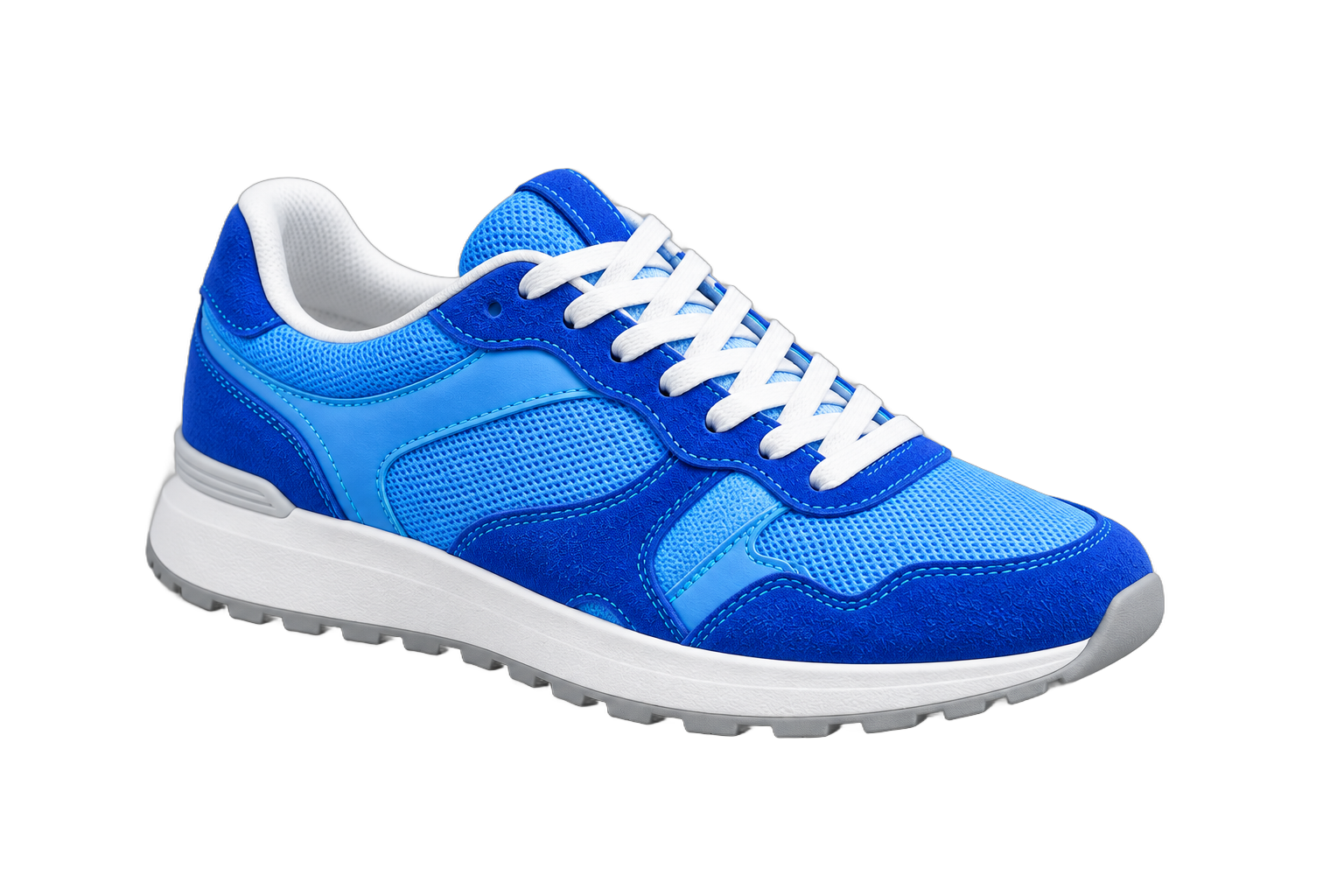
Gray space outside the image is not included in the download.
Prepare a product photo for a listing or catalog, then check the image requirements of the place you plan to publish it.
Use a photo with the whole product in frame. Sharp edges and separation from the original background help the cutout.
The white background is selected for you. Move the comparison slider to inspect handles, gaps, fine details and any parts that should remain.
Keep the original canvas or choose a square without stretching the product. Export JPG, PNG or WebP and review the downloaded dimensions.
A white background gives a product photo, portrait or personal listing a neutral setting. It can help a collection of images look more consistent without asking you to photograph everything in the same room. Upload one image, remove its existing background, and review the subject against white before deciding whether the result is ready to use.
Consistency still depends on the source photographs. A white background will not correct different lighting, straighten a product, remove wrinkles or create a missing shadow. Choose originals with similar angles and visible details when preparing related images. Marketplace rules differ, so check the destination's current requirements for framing, dimensions and permitted edits before publishing a listing.
White clothing, light packaging and shiny objects can disappear into a white canvas even when the cutout looks acceptable at first glance. Temporarily choose a darker background to inspect the outline, then return to white. Pay attention to transparent handles, glass, fine hair and reflections that still contain colors from the original scene.
Use the comparison view to distinguish an edge problem from low contrast in the original. If part of the product is missing, a white fill will not bring it back. Try a sharper original with clearer separation between the product and its surroundings. Keep labels and small text readable at the size where customers will see the image; a clean background cannot compensate for blurred product information.
Keep the original canvas when the processed image's proportions fit your destination. Choose a square canvas if the design calls for a square image with space around the subject. Check the visible output dimensions and the subject's position before downloading. Empty space around a tall or wide subject can be intentional; stretching the photograph would change the product's proportions.
A white background fills the exported canvas, not every part of the surrounding preview panel. Open the actual download to confirm where the image begins and ends. If a marketplace crops uploaded photos into thumbnails, inspect that final thumbnail too. Background replacement alone does not guarantee that the destination will preserve your chosen framing.
JPG is widely supported for finished product photographs with a white background. PNG preserves the processed pixels without JPG compression, although file size can be larger. WebP is useful where it is accepted. Selecting any of these formats with White active produces a solid background; choosing PNG by itself does not make the white fill transparent.
If you also need a reusable cutout, switch back to transparent and download a separate PNG or WebP. Keep the original photo, the transparent version and the final white version with clear filenames. Download files you want to keep. Neither a format change nor a white canvas increases the resolution of the processed image, so check dimensions before using it in print.
Yes. This preview lets you process single images without signing in. Requests are rate-limited to keep the service responsive; no payment is collected in this version.
No. It fits the processed image inside a square canvas while preserving proportions. It does not automatically detect marketplace framing or enlarge the product to a required percentage; square output is capped at 4096 pixels.
Your images are processed to remove their backgrounds and are not used to train AI models. Download and save the results you want to keep.
No. This tool creates a white background, but each marketplace has its own requirements for framing, resolution, shadows and product content. Check the final photo against those requirements.
Choose White in the background controls, then download as JPG, PNG or WebP. White adds a solid #FFFFFF background to the cutout. Transparent PNG leaves the background empty instead.
No. This tool replaces the background with a flat color; it does not generate a new studio shadow. Check the product edges and any remaining original shadow in the preview. For glass, glossy products or pale edges, start with a sharp photo and an uncluttered background.
Yes, but pale edges can be difficult to separate. Start with a well-lit original that contrasts with the product, then inspect the cutout against a darker color before switching to white. A white background does not restore details that the cutout removed.
Use JPG when you need a widely supported photo file, or PNG when you need a lossless export of the processed image. With White selected, both have a solid background. Neither format increases resolution; check the exported dimensions and the destination file-size requirements.
Background remover
Replace the existing backdrop with a white background. Preview the edges, choose the original canvas or a square, and export a JPG, PNG or WebP.